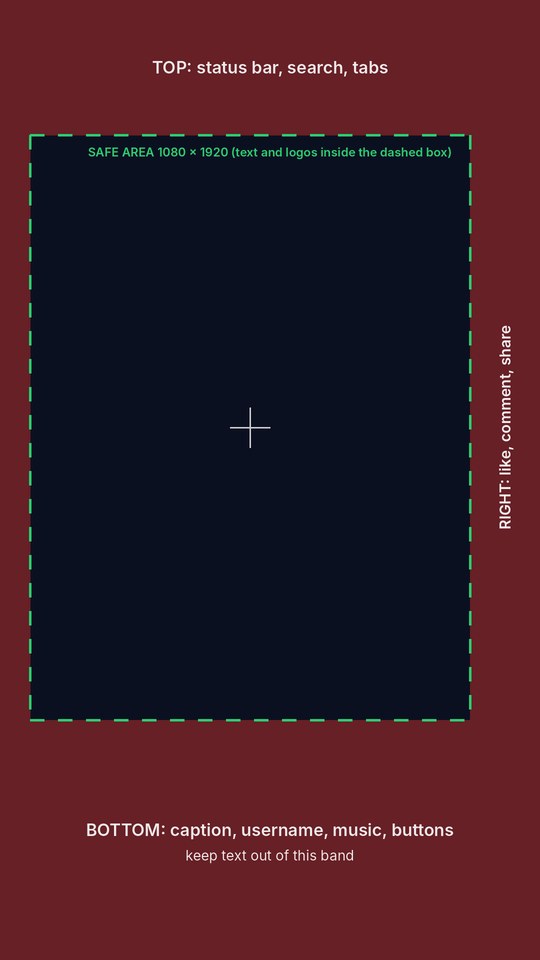
Put your text and logos inside the dashed box: at least 270 px from the top, 480 px from the bottom, 140 px from the right edge and 60 px from the left edge of a 1080 x 1920 frame. Download the transparent PNG, place it on the top track of your timeline while you edit, and remove it before you export.
Download
Transparent PNG overlay (1080 x 1920)
Free for personal, client and commercial projects. License terms
License: free to use, credit appreciated
© 2026 Bhavesh Vaghela. The safe zone template (PNG and SVG) is free: no fee, no sign-up, nothing to request. The download buttons above are the whole process.
- You can: use it in personal, client and commercial projects, including paid work and ads, and edit it to suit your layout.
- Credit: not required. A mention of Bhavesh Vaghela or a link to this page is appreciated.
- Please don't: sell the files, bundle them into a paid template pack, or present them as your own work.
- Sharing: link to this page rather than re-hosting the files, so people always get the current version.
Need a different kind of use? Get in touch.
The margins
| Edge | Keep clear | What the app puts there |
|---|---|---|
| Top | 270 px | Status bar, search, tabs and the "Following / For you" switch |
| Bottom | 480 px | Caption, username, music label and call-to-action buttons |
| Right | 140 px | Like, comment, share and profile buttons |
| Left | 60 px | A small margin so text is not cut on narrow phones |
These are my conservative combined margins, wider than any single app needs, so one layout works on Reels, TikTok and Shorts. Apps change their layouts from time to time, so treat the numbers as a starting point and check a draft in the real app. The reasons are in the guide to vertical video safe zones.
How to use the template
- Premiere Pro: drag the PNG onto a track above your clips, stretch it to the frame, and switch that track's output off (the eye icon) before you export.
- After Effects: import the PNG into a 1080 x 1920 composition, place it on top and turn it into a guide layer (Layer, Guide Layer) so it does not render.
- CapCut and DaVinci Resolve: add the PNG as an overlay clip above your video and delete or disable it before exporting.
- Any editor: if it can show a PNG on a top layer at 100% size, it works.
Test it before you post
- Export a draft at 1080 x 1920.
- Upload it as a private or unlisted post.
- Watch it on a real phone, in the feed and in full screen.
- Note anything covered by buttons or text, adjust and re-export.
Frequently asked questions
Are safe zones the same on Reels, TikTok and YouTube Shorts?
No. Each app places its buttons, caption and search bar a little differently, and the layouts change with updates. This template uses wide margins that stay clear of the usual overlays on all three, so one layout works everywhere. Test it in the real app before you publish.
What size is the template?
1080 x 1920 pixels (9:16), the standard vertical video size for Reels, TikTok and Shorts.
Can I use it for video ads?
Yes, but ad placements can add extra labels and buttons, so keep more room at the bottom and test the ad preview in the ad manager.
Can I use it for client work?
Yes. The files are free to use in personal and client projects. Please don't resell the template as your own.
Does it work for 4:5 or 1:1 video?
No. It is made for 9:16 vertical video. For other sizes see the aspect ratio guide.
Related reading: where to put text and logos, captions for short-form video, video aspect ratios explained and short-form video editing.